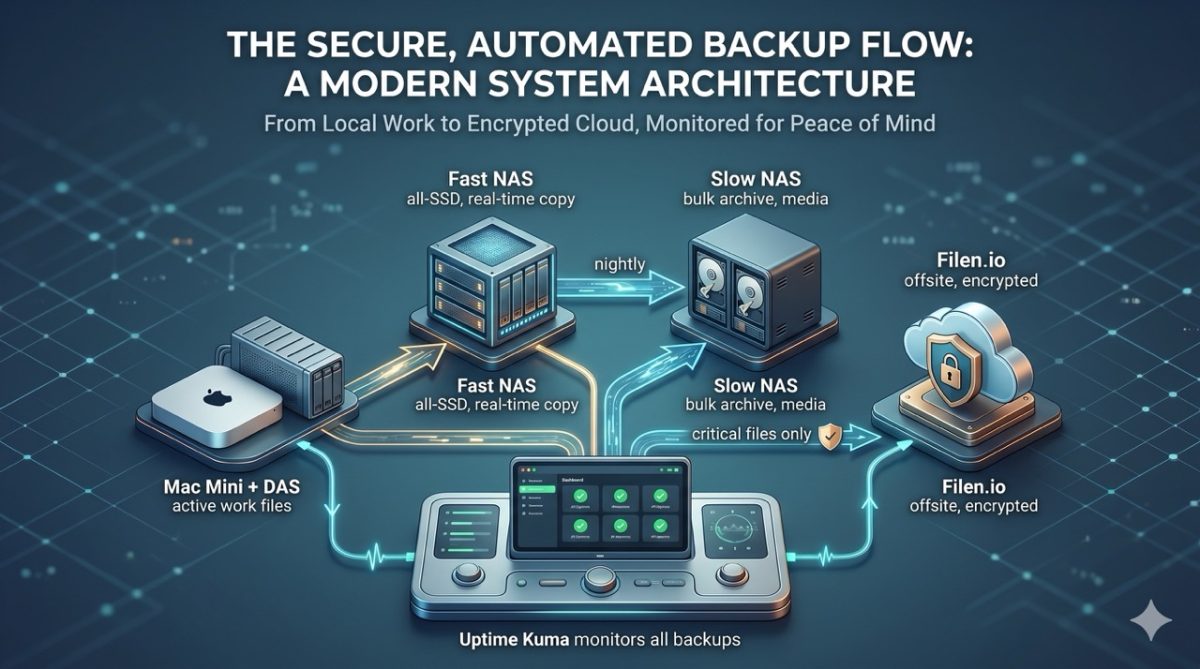
I run two NAS devices, a Thunderbolt array, and an encrypted cloud vault — and I still don't trust the cloud to be my only backup. Here's the boring, unglamorous system that actually works.
The Question I Get Asked a Lot
"How do you back up everything?" People ask this assuming I have some complicated, expensive setup. The truth is simpler than it sounds — it's just consistent. Three physical copies of anything that matters, one offsite encrypted copy for the truly critical stuff, and a rule I never break: the cloud is not a backup.
Here's exactly how it works.
The Core Setup
My main machine is an M4 Mac Mini with only a 256GB internal drive — intentionally. I keep applications, a couple of AI models, and a small folder of Markdown context files on it. That's it. Everything else lives elsewhere.
Day-to-day work — content creation, YouTube footage, blog files, active projects — lives on an 8TB NVMe DAS (direct-attached storage) connected via Thunderbolt. It's fast, it's local, and it's my workhorse drive.
The Three-Copy Flow
- Fast NAS (all-SSD): My main DAS backs up here semi-continuously as I work.
- Slow NAS (bulk HDD storage): Every night, the Fast NAS archives to this one.
- Result: Three physical copies of every file I actively use — main drive, Fast NAS, Slow NAS.
Anything I don't need close at hand — installers, ISOs, large finished videos — skips the main drive entirely and goes straight to the Slow NAS, in its own folder, to keep my workhorse drive lean.
The Cloud Layer (And Why It's Last, Not First)
I use Filen.io — zero-knowledge, end-to-end encrypted — for an offsite copy of business-critical files. I locked in 200GB for life during a promo, which sounds tiny by today's standards, but I'm not backing up videos there. Just the files that actually matter if my house burns down.
Two tiers:
- Sensitive files (tax documents, financials): encrypted locally first, then the encrypted folder gets synced to Filen.io. Double layer of protection.
- Everything else business-critical: synced as-is, no extra encryption needed since Filen.io is already zero-knowledge.
Photos and content videos don't go here — too large, not the point of this layer.
A Special Case: AI Context Files
My AI context files (small Markdown docs that give my AI tools persistent memory of my setup and preferences) live in Documents on the Mac Mini, synced via iCloud. This isn't a real backup — it's an accessibility feature so I can read or edit them from my laptop, tablet, or phone. I still count them as protected because they're small enough to also land in the NAS backup flow.
Monitoring: Knowing Before Something Breaks
A backup system is only as good as your awareness that it's actually running. I monitor mine with Uptime Kuma, alongside my own homelab dashboard, so if a NAS goes offline or a backup job silently fails, I find out the same day — not three months later when I actually need the file.
What If a NAS Dies?
This is the scenario the whole system protects against. If the Fast NAS fails, the Slow NAS still has last night's archive — I replace the hardware and re-seed from the Mac Mini and Slow NAS. If the Slow NAS fails, I still have the Fast NAS and the main drive. No single point of failure ever holds the only copy of anything that matters.
You Don't Need Two NAS Devices To Do This Right
If you're a home user or small business without a homelab, the principle still applies — just scale it down:
- 1 copy: your computer
- 1 copy: an external drive, backed up weekly (Time Machine on Mac, File History on Windows — both free)
- 1 copy offsite: a cloud sync tool for your truly irreplaceable files only — documents, tax records, photos. Not your whole drive.
That's a real 3-2-1 backup: three copies, two different media types, one offsite. You don't need my hardware to follow that rule.
What This Costs (priced in Canadian Dollars)
| Item | Role | Approx. cost |
|---|---|---|
| Synology DS923+ (Fast NAS, SSD) | Real-time work backup | ~$700–900 hardware |
| Ugreen DXP4800 Pro (Slow NAS, HDD) | Nightly archive | ~$500–700 hardware + drives |
| Filen.io (200GB lifetime promo) | Offsite encrypted backup | ~$50 one-time |
| Time Machine / File History | Home-scale equivalent | Free (built into OS) |
| External USB drive | Home-scale equivalent | ~$70–150 |
You don't need the NAS tier to be properly backed up. A computer, one external drive, and a cloud sync for critical files covers the same principle for under $150. If you are going for the scaled down version, I'd suggest looking for the best quality external SSD you can find, that has enough storage space for what you need and is within a reasonable budget. Don't skimp on this and buy a cheaper drive to save a few dollars. This is one area where you get what you pay for and making a mistake can be a lot more costly then had you spent the money at purchase.
FAQ
Is RAID a backup?
No. RAID protects against a single drive failing inside one device — it does nothing if the whole NAS is stolen, fried by a power surge, or hit by ransomware that syncs to every drive at once. RAID is uptime insurance, not backup. You still need a second device.
Is Dropbox/Google Drive/iCloud a backup?
Sync is not backup. If a file gets deleted, corrupted, or encrypted by ransomware, that change syncs to the cloud too — sometimes before you notice. A real backup is a copy you can roll back to, on different hardware than your primary copy.
How often should backups run?
Active work files: as close to real-time as your tools allow. Archive/bulk: nightly is plenty. The cost of "too often" is near zero with automated tools; the cost of "not often enough" is losing a day's work.
What's the single biggest mistake people make?
Treating one cloud account as their only copy. Two physical, independent locations is the floor — everything past that is bonus protection.
The One Rule Worth Remembering
Cloud storage is sync, not backup, until you have a second copy somewhere else. If your only copy of a file lives in Dropbox, Google Drive, or iCloud, and that account gets compromised, deleted, or has a sync error — you have nothing. Two physical, independent copies is the minimum. Everything else is bonus protection.