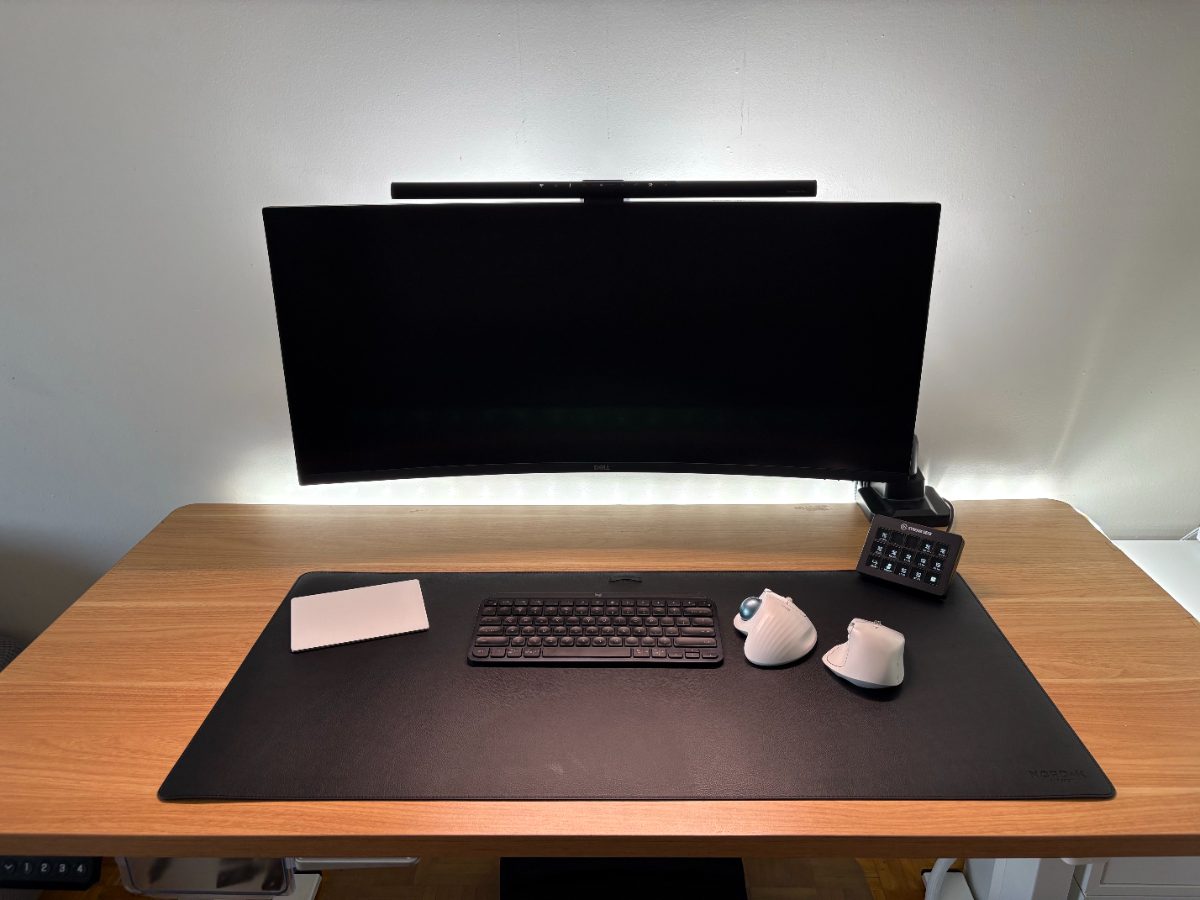
Most desk setups fall into two camps: stripped down to almost nothing, or packed with gear that never gets touched. Mine tries to live in between — simple enough to think clearly, flexible enough to actually get work done.
I've spent 25 years in IT. I've managed teams, troubleshot everything from enterprise networks to someone's printer not connecting, and I've watched a lot of people over-engineer their workspaces. I try not to do that. Everything on my desk gets used every day. If it doesn't, it goes into storage — or gets sold.
This post covers the hardware. Software is its own conversation — I'll get there in Part 2. For now: the desk, the machine, and everything plugged into it.
Everything is kept as minimal as possible on top of the desk. The complexity lives underneath it.
Note: Some links in this post are affiliate links. I've tried to link to the exact items I use — where those weren't available, I've linked to comparable alternatives. If you buy through a link, I earn a small commission at no extra cost to you. It helps keep the blog going.
The Machine: M4 Mac Mini (Base Model)
I run the base M4 Mac Mini — 16GB RAM, 256GB storage. Not the Pro. Not the Max. Just the base.
Coming from Windows for most of my career, I made the switch to Mac for personal use about 15 years ago. The M4 Mini felt like the obvious choice when I needed to upgrade: fast, quiet, small, and it doesn't need a dedicated GPU for what I do. Content creation, blogging, light development, and a lot of browser tabs. The base chip handles all of it without breaking a sweat.
The 256GB internal storage is intentional. My IT background ingrained one habit I've never dropped: keep the system drive lean. OS and apps only. All files and media live elsewhere. On Windows we called it keeping the C drive clean. Same principle applies here.
Primary Storage: TerraMaster D4 SSD (8TB)
Connected directly to the Mac Mini via Thunderbolt 4 is a TerraMaster D4 SSD — a four-slot NVMe enclosure that I run as a single 8TB volume. No RAID. Just four drives that the system sees as one big drive.
This is where active work lives: current content projects, working files, anything I'm touching this week. Once a project wraps, it moves to long-term storage. The goal is to keep this drive from becoming a dumping ground. If you've read my post on how I manage 56TB, you'll recognize the pattern.
Running it over Thunderbolt 4 means the speed is there when I need it — especially during video exports.
The Dock: Ugreen Revodok Max 14-in-1
The M4 Mac Mini has five USB-C ports, three of which are Thunderbolt. That sounds like plenty — until you realize most of the world still runs on USB-A.
I added the Ugreen Revodok Max 14-in-1 to bridge that gap. The two things that sold me on it specifically: Thunderbolt 4 passthrough, and 2.5 Gigabit Ethernet. I upgraded my home network to 2.5GbE a couple of years ago, and I wasn't going to bottleneck it at the desk.
Fair warning: the dock itself is roughly the same footprint as the Mac Mini, and it comes with a chunky power brick. If you're shopping for a dock, factor in the adapter size — it's easy to overlook until it's sitting on your desk taking up real estate. Mine is mounted under the desk, so it's a non-issue. But worth knowing.
The KVM: Dual Monitor 4-Port
A KVM switch lets you share one keyboard, mouse, and monitor across multiple computers. I have a dual-monitor 4-port KVM — meaning I can have up to four machines connected and switch between them with a button press, across two displays.
This goes back to when I was working from home and needed to switch between my personal machine and a work laptop constantly. The setup has since simplified, but the KVM stays. It gives me flexibility. If I need to bring another machine to the desk — a test system, someone's laptop I'm troubleshooting — it's already wired for it.
The Display: Dell 34-Inch Ultrawide
Single monitor. Dell 34-inch ultrawide, going on three years now. Mounted on an arm I've had just as long. The exact model I have is discounted but I linked to a similar model.
I do own a KTC 27-inch 1440p monitor. It lives in storage. When I'm working on a larger project or need reference material on a second screen, I can have it set up in about 15 minutes — the arm, the cables, and the KVM are all already ready for it. But most of the time, the ultrawide is enough and a second screen would just add noise.
One wide screen, used well, beats two screens used poorly.
Light: BenQ ScreenBar Pro (Without the Puck)
The BenQ ScreenBar Pro sits on top of the monitor and is one of the best low-friction additions I've made to this desk. The feature that decided it for me: the presence sensor. It detects when I sit down and turns on automatically. When I leave, it shuts off. No buttons, no remotes, no thinking about it.
I specifically chose the version without the wireless puck. The puck adds convenience but it's also another thing on the desk. The sensor does the same job without taking up space.
Input: Three Pointing Devices (Yes, Three)
This is the part people find strange. I use three pointing devices, and I switch between them depending on what I'm doing.
Logitech MX Master 4 — my primary mouse. I used the 3S for years and loved it. The 4 is marginally better in features, but the real reason I switched is the material. The pale gray 3S got grimy over time and no amount of cleaning fully fixed it. The 4 uses a harder plastic that actually cleans up properly. That alone was worth the upgrade for me.
I don't use most of its advanced features. The one I rely on is a side button mapped to trigger Superwhisper — my voice-to-text tool. Having that on a physical button I can find without looking saves me more time than I expected.
Logitech M525 Trackball — lives to the right of the keyboard. When my wrist needs a break from the standard mouse grip, this is what I reach for. The scroll wheel and back/forward buttons cover most of what I need without moving my arm.
Apple Magic Trackpad (2nd gen) — on the left side. Primarily used for swiping between virtual desktops and multi-touch gestures in certain apps. It's Bluetooth, wireless, works fine. When it eventually dies I'll probably replace it with the current model — maybe not.
Keyboard: Logitech MX Keys Mini
The Logitech MX Keys Mini is what I type on every day. I liked it so much I bought two — one for home, one that used to live at the office. Same keyboard everywhere means the same muscle memory everywhere, which matters more than people think when you type constantly.
There's also an Apple Magic Keyboard wired under the desk. It never moves. It's only there for Touch ID — unlocking the Mac, authenticating purchases. I prefer Touch ID over typing a password a hundred times a day, and the Magic Keyboard is the most reliable way to have it on the Mini. But for actual typing, it's the MX Keys Mini every time.
Automation: Elgato Stream Deck MK.2 (15-Key)
The Stream Deck MK.2 on my desk has nothing to do with streaming. I use it for window management shortcuts, switching audio sources, and triggering common actions I'd otherwise be doing through menus or keyboard combos. It removes friction from repetitive tasks.
If you work in any kind of content creation or just spend a lot of time at your desk, a Stream Deck is worth a look. It sounds like a streamer tool. It's actually just a programmable shortcut panel.
The Desk: Flexispot Standing Desk
Going on four years with this standing desk now. It's one of the earlier Flexispot models. It works. Standing desks are one of those things where buying once and keeping it long-term makes more sense than chasing upgrades — the mechanics are simple and this one has never given me a reason to replace it.
The desk pad is a large faux-leather mat from Amazon. Generic. Does the job. Big enough to cover all the peripherals and keeps the surface clean.
Everything Else Is Under the Desk
Here's the part that ties it all together: the Mac Mini, the TerraMaster, the dock, the KVM, the power bars, the USB hubs — all of it is mounted underneath the desk. Velcro straps, wire management guides, a few 3D-printed brackets I found online. Not perfect. But intentional.
The goal isn't a pristine cable management showcase. It's flexibility. I can add a second monitor in 15 minutes. I can swap a machine in and out in under an hour. Everything is accessible, and nothing is permanently fixed in a way that makes changes painful.
That's the trade-off: it looks cleaner than most setups because the mess is hidden — but the mess is organized enough that the flexibility is real.
What This Setup Is Actually For
I want to be upfront about something. This isn't a minimalist setup in the sense of "I own almost nothing." By most people's standards, this is a lot of gear.
But every single piece gets used daily. Nothing is here because it looks good in a photo. The three pointing devices, the KVM, the storage strategy — these come from 25 years of building and managing systems and knowing exactly what friction looks like when it slows you down.
Minimalism, for me, means no waste. Not no stuff.
Part 2 covers the software side — the apps and tools that make all of this actually work. Coming soon.